How to Create Talking AI Avatars Using ChatGPT, Gemini and Google Flow (Step-by-Step Guide)

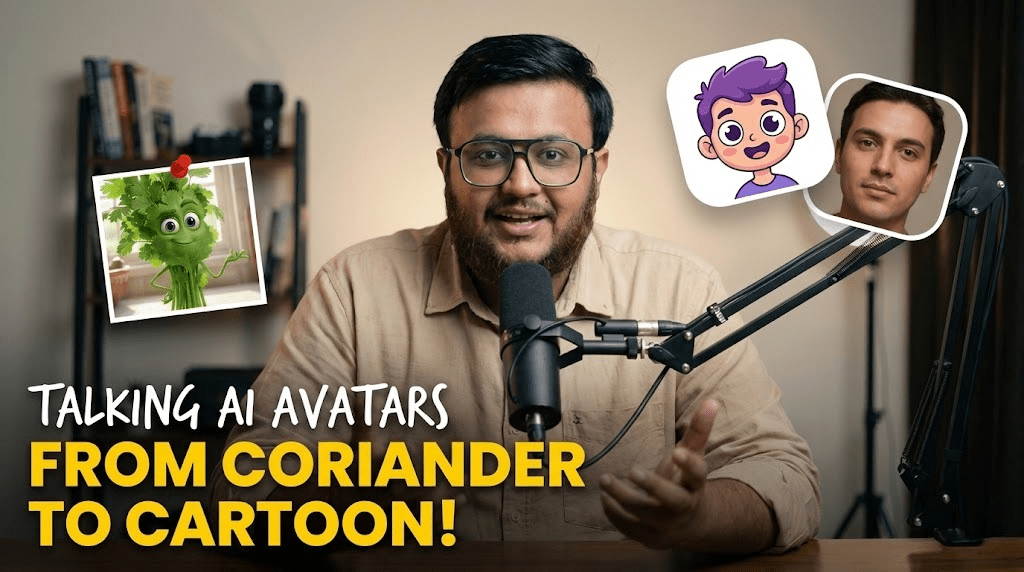
What if I told you that an adorable talking coriander started as nothing more than a simple text prompt?
Sounds crazy. But that is exactly how I created a fully animated talking AI avatar using nothing but smart prompting and the right AI tools.
In this guide, I will walk you step by step through the exact workflow I used to create talking AI avatars using ChatGPT, Google Gemini, and Google Flow. No expensive software. No complex animation tools. Just clear prompts and a repeatable system.
And once you understand this system, you can turn literally anything into a talking character. A coriander. A plastic bottle. A coffee mug. Even a textbook.
Why Talking AI Avatars Are So Powerful
Talking AI avatars grab attention instantly. Especially when they are unexpected.
A coriander talking confidently about flavor. A plastic bottle complaining about pollution. A pencil motivating students before exams.
It works because:
- It breaks pattern in the feed
- It adds personality to ordinary objects
- It makes educational or marketing content memorable
- It increases watch time and retention
And the best part? You do not need animation skills to create talking AI avatars anymore.
The 3-Step Workflow to Create Talking AI Avatars
Here is the exact system I used.
Step 1: Generate Script and Image Prompt Using ChatGPT
The first step is clarity. Before animation, before visuals, you need:
- A strong voice script
- A detailed image generation prompt
For example, here is the Pixar-style prompt I used for the coriander character:
A Pixar-style 3D render of a fresh bunch of coriander (cilantro) with bright green, delicate leafy tops and thin stems bundled together. The coriander has large expressive emerald-green eyes nestled between the leaves, soft leafy eyebrows that curve dramatically, and a small curved mouth showing a confident, slightly sassy smile. Two thin vine-like arms extend from the stems, one hand on its hip and the other gesturing passionately in mid-air. The scene is set in a warm, cozy kitchen countertop environment with soft golden morning sunlight streaming through a window, creating a gentle glow around the leaves. Tiny water droplets shimmer on the leaves, adding freshness. The lighting is cinematic, shallow depth of field, with blurred vegetables in the background, giving a vibrant, lively Pixar movie vibe.
Now here is the voice script used for the avatar:
मैं धनिया हूँ, छोटा दिखता हूँ पर असर बड़ा करता हूँ।
बस एक चुटकी डालो और पूरा स्वाद बदल जाता है।
मुझे हल्के में लोगे तो खाने में जान ही नहीं बचेगी।
मैं खुशबू भी हूँ, ताजगी भी हूँ, असली फिनिशिंग टच भी।
The key idea is this: ChatGPT helps you think creatively and structure personality.
Universal Prompt to Generate Character Voice Scripts
You can use this reusable prompt to generate scripts for any character:
Act as a creative character writer.

I will give you the name of an object or character.

Your task:
1. Give it a strong personality.
2. Write a short 4–6 line monologue in first person.
3. Keep it punchy and expressive.
4. Add emotional contrast (small but powerful, underestimated but impactful, etc.).
5. Make it suitable for a 20–30 second talking avatar video.
6. Keep the tone dramatic, confident, or humorous depending on the character.

Character: [INSERT CHARACTER HERE]
Language: [INSERT LANGUAGE HERE]
This single prompt allows you to create talking AI avatars for unlimited ideas.
Or you can visit this CustomGPT
Step 2: Generate the Character Image Using Google Gemini
Once you have the detailed image prompt, copy it into Google Gemini.
Use the same structured prompt format:
- Style (Pixar-style 3D, realistic, cartoon, cinematic)
- Facial features
- Body details
- Environment
- Lighting description
- Camera depth
The more descriptive you are, the better the character consistency.
This step turns your idea into a high-quality static character image.
Step 3: Animate Using Google Flow
Now comes the magic.
Upload:
- The generated character image
- The voice script
Inside Google Flow, use the Frames to Video feature.
Map the script to the image. Adjust lip sync. Generate the final output.
And just like that, you have a talking AI avatar.
No Expensive Software Required
You do not need After Effects.
You do not need advanced 3D tools.
You do not need a production team.
You just need:
- ChatGPT for script and prompts
- Google Gemini for image generation
- Google Flow for animation
Smart prompting beats expensive tools.
Use Cases for Talking AI Avatars
- YouTube shorts
- Instagram reels
- Educational content
- Brand storytelling
- Explainer videos
- Product marketing
Imagine a talking book teaching history. Or a talking wallet teaching finance. Or a talking water bottle promoting hydration.
Once you understand how to create talking AI avatars, the ideas never stop.
Final Thoughts
Honestly, this is just the beginning.
We are moving into a world where storytelling is no longer limited by budget. It is limited by imagination.
If you understand prompting, you understand creation.
If you want a detailed written breakdown of this entire project, including all prompts and tool links, check the link in the description or scan the QR code mentioned in the video.
If this guide helped you, share it with another creator who needs to see this.
I will keep testing AI tools so you can focus on creating.